Appearance
Theme Editor
Guide for customizing Sportsbook using Theme Editor
With the Theme Editor, you can customize the appearance of your Sportsbook to perfectly match your brand — its colors, typography, and the look of interactive elements. Every change is previewed live in the interface beside the editor, so you can fine-tune the result before you apply it. Once you are happy with your theme, you export it and apply it automatically during SDK initialization. Review the sections below to configure the desired settings.
INFO
NOTE: The Theme Editor opens as a panel on the desktop Sportsbook. You can save your themes locally, share them with a link, and export them for integration — all from the same panel.
1. Starters: Preset themes and your personal preset
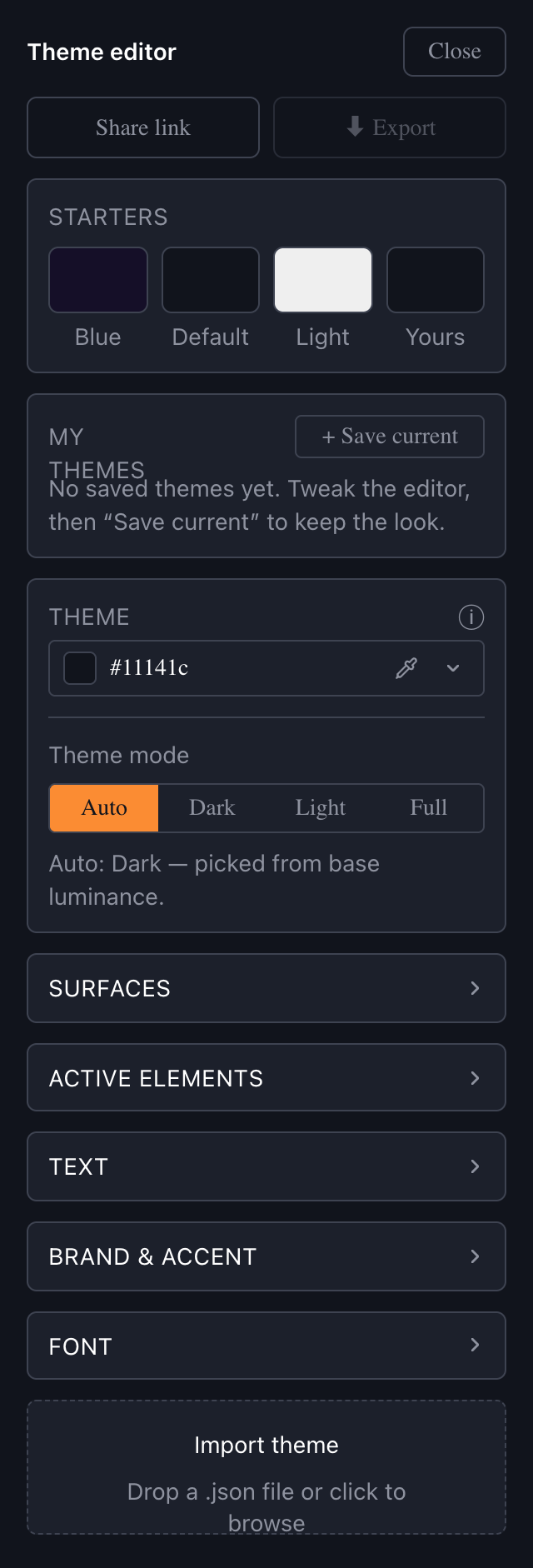
The Starters row lets you jump to a starting point with a single click:
- Blue: A preset using a dark blue color scheme.
- Default: The standard Sportsbook theme. Selecting it resets all colors and font back to the stock design.
- Light: A preset using a light color scheme.
- Yours: Your last edited theme. It automatically captured as you customize, so you can preview another starter and then return to your own work.
2. Theme Generator: Build a full palette from one color
The Theme Generator creates a complete, balanced color scheme from a single base color. Select a base color—for example, your main background—and the generator automatically derives the surface, accent, and remaining theme colors. You can then fine-tune any individual color in the Color Customization sections below.
Use the Theme mode switch to control how the base color is interpreted:
- Auto: Automatically detects a dark or light theme based on the brightness of the base color.
- Dark: Builds a dark theme by adjusting the background to a darker tone and surface colors to lighter tones.
- Light: Builds a light theme by adjusting the background to a lighter tone and surface colors to darker tones.
- Full: Uses the selected color as the background without adjustment. Very bright or highly saturated colors may reduce contrast and readability.
INFO
NOTE: In Auto mode, if the picked color falls outside the comfortably readable range, the Theme Editor softens the background and shows a short notice. Switch to Full if you want to keep the exact color.
3. Color Customization: Adjust each color individually
For full control, you can adjust each interface element individually. The controls are organized into collapsible groups.
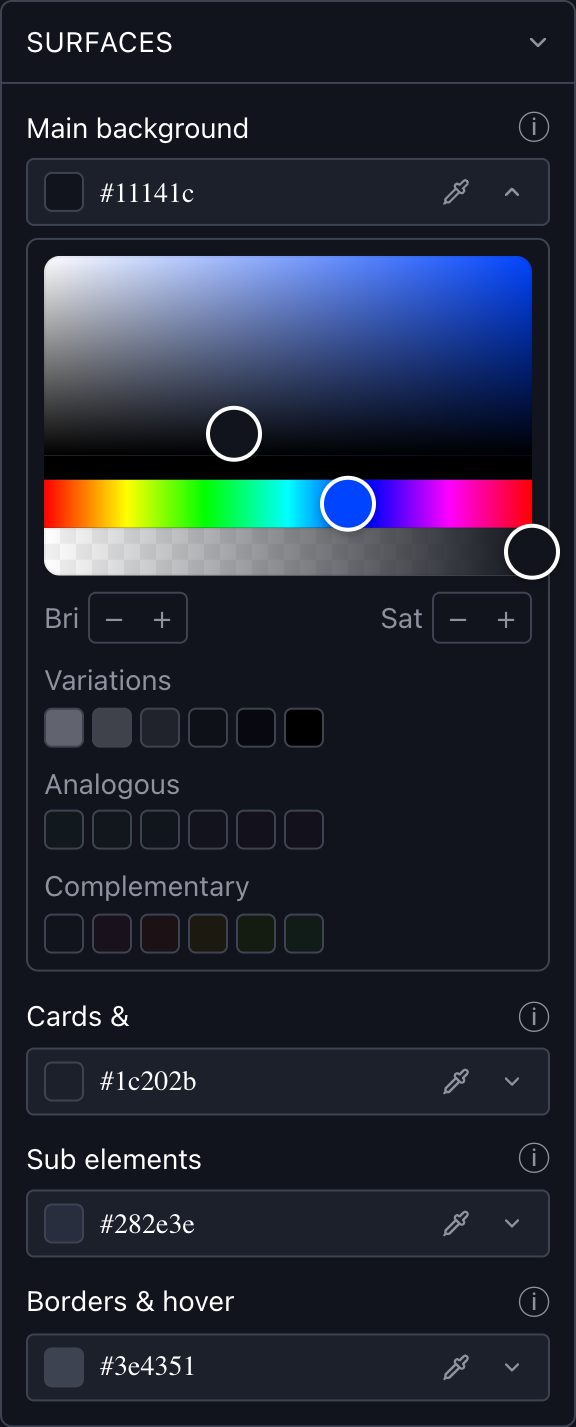
Surfaces — the background layers of the interface:
- Main background: The background behind the main Sportsbook interface.
- Cards & popups: The background of cards, popups, and dropdown menus.
- Sub elements: The background of secondary interface elements, such as inactive tabs, the search bar, date pickers, and filter chips.
- Borders & hover: Borders and dividers throughout the interface, as well as hover and raised states for tabs and filter chips.
Active elements — your primary brand color:
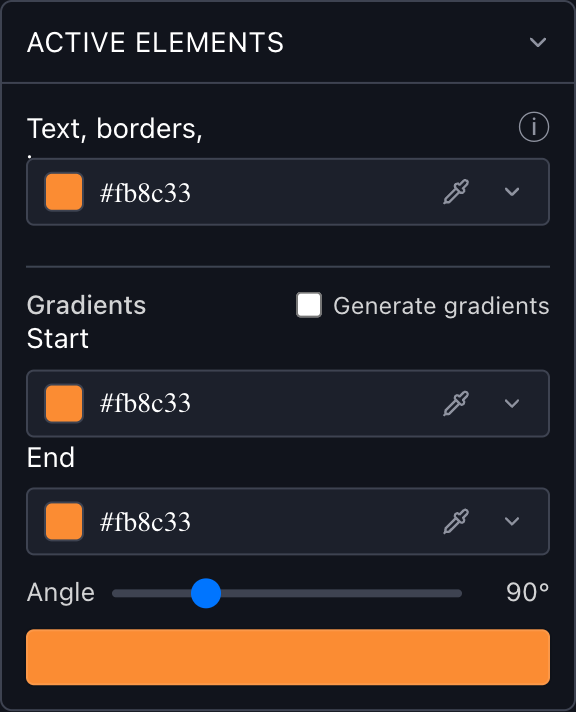
- Text, borders, icons: The primary brand color used for selected tabs and filters, active items, link hovers, and icons.
- Gradients: An optional setting that replaces the solid button fill with a gradient. Set a Start and End color and the Angle manually, or enable Generate gradients to calculate the gradient automatically from the primary brand color.
Text — the readability of copy:
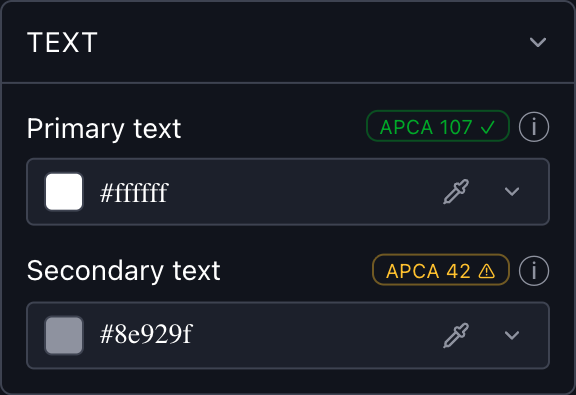
- Primary text: Headings, active tab labels, odds, amounts, and prominent button text.
- Secondary text: Inactive tab labels, hints, captions, and secondary metadata.
Each text color control includes a contrast indicator that checks the text color against its background. The indicator turns green when the contrast meets the recommended level and amber when it may be insufficient. The indicator is provided for guidance only and does not prevent you from selecting any color.
Brand & Accent — the semantic colors:
- Secondary accent: A secondary brand color used for selected outcome odds, bet slip items, bonus buttons, and the active menu item.
- Positive: Used for positive states, such as rising odds, success messages, and positive badges.
- Negative: Used for negative states, such as falling odds, error messages, and alert badges.
- Warning: Used for warning states, such as locked or suspended markets, bonus highlights, and warning badges.
INFO
NOTE: Some bet status chips (such as Won, Lost, and Cashout) use a separate fixed color palette and are not affected by these color settings.
Color picker tools — For each color, the color picker provides:
- A hex input for an exact value, plus an opacity slider for transparency.
- A screen eyedropper for sampling any color on screen (available in Chromium-based browsers).
- Recent, Variations, Analogous, and Complementary swatches for quick selection.
- Bri and Sat controls for adjusting brightness and saturation.
- Undo to revert the last change and Reset (↺) to restore the default value for the selected color.
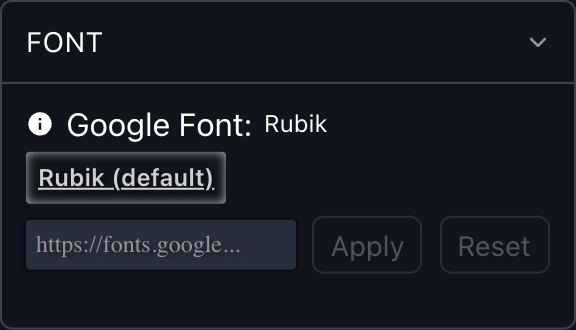
4. Fonts: Apply a custom font
In the Font section, you can change the Sportsbook typeface using a Google Fonts link.
- Paste a Google Fonts URL — for example,
https://fonts.googleapis.com/css2?family=Ubuntu&display=swap— and click Apply to preview the font. - You can load several fonts to compare them, but only one can be active at a time. The active font is the one saved and exported with your theme.
- Click Reset to restore the default font.
INFO
NOTE: Only a Google Fonts is supported, and the URL must reference a single font family. You can browse available fonts at https://fonts.google.com/.
5. My Themes: Save, reuse, and share
In addition to exporting, you can save and share themes directly from the Theme Editor:
- My themes: Click + Save current to save the current colors, theme mode, and font as a named theme. You can reapply, rename, or delete a saved theme at any time. Saved themes are stored in your browser and are available only in the browser where they were created.
- Share link: Click Share link to copy a link to your current theme. Anyone who opens the link sees the Sportsbook with your theme applied, making it easy to share the theme for review.
6. Saving and exporting: Download your theme as a zip archive
Once you finish customizing your theme, click ⬇ Export to download it as a zip archive (sportsbook-theme.zip). The archive contains three files:
- theme-editor-data.txt: A string you add to the
themeEditorDataparameter during SDK initialization to apply the theme automatically (see the Shadow mode and iFrame integration guides). - theme-admin-upload.json: Re-import this file into the Theme Editor to make further changes. You can also share it with our team to apply the same theme to your Sportsbook.
- theme.css: A ready-to-use CSS file containing all your theme variables. To apply it to the Sportsbook, host the file and pass its public URL to the
customStylesparameter during SDK initialization — the same approach described in Other customizations.
INFO
NOTE: The variables take effect only when they are declared under the :root, :host selector — :root applies them in iFrame and light-DOM integrations, and :host applies them in Shadow mode. The exported theme.css is already wrapped this way; keep this structure if you edit it or write your own file:
css
:root, :host {
  --active: #fb8c33;
  /* …the rest of your theme variables… */
}To continue editing a theme you exported earlier, use the Import theme area at the bottom of the panel: drop a .json file (your theme-admin-upload.json) or click to browse. Your colors, gradient, and font are restored so you can pick up where you left off.
This functionality allows you to create, save, import, export, and share theme settings, making it easier to reuse them across platforms.