Appearance
Navigation synchronization
Keep your site navigation in sync with the Sportsbook. The required approach depends on your integration method - choose your mode below.
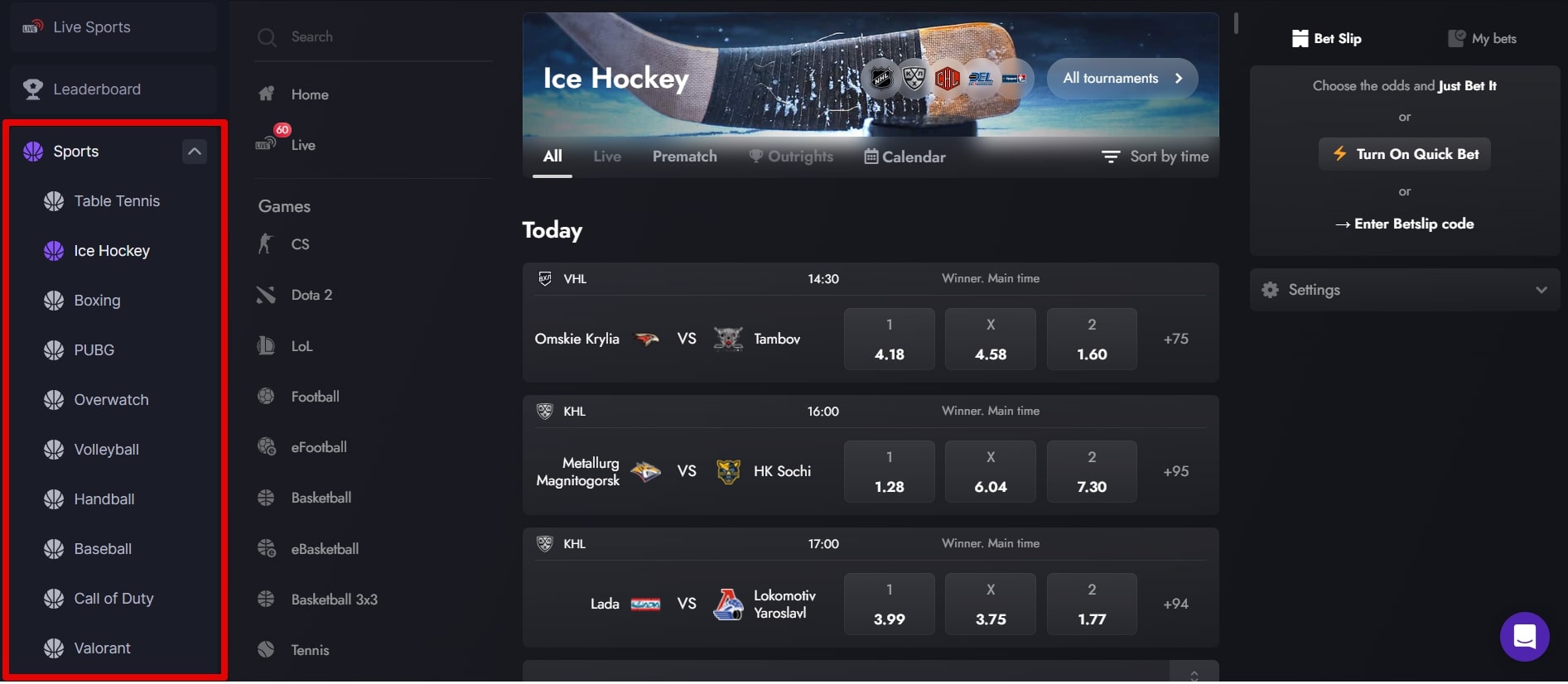
Recommended. Drive navigation with the Sportsbook API — no postMessage required.
In Shadow mode you control navigation directly through the Sportsbook API, eliminating the need for a postMessage bridge:
- Subscribe to categorizer data to build your menu from Sportsbook categories. The data already contains the routes passed to
setRoute. - Call
Sportsbook.setRoute(route)whenever a user selects a menu item to navigate within the Sportsbook.
INFO
NOTE: Subscribing to categorizer data automatically hides the built-in categorizer in the Sportsbook to avoid duplicating it next to your own menu. To keep the Sportsbook categorizer visible, pass isShowCategorizerInSportsbook: true to subscribeOnCategorizerData.
For example, your code might look like this:
javascript
// 1. Initialize the Sportsbook (Shadow mode)
const SportsbookApp = Sportsbook.init({
  host: 'https://APP_URL',
  cid: 'PARTNER_ID',
  // ...other params
});

// 2. Subscribe to categorizer data and build your own menu from it
await window.Sportsbook.subscribeOnCategorizerData({
  host: 'https://APP_URL',
  cid: 'PARTNER_ID',
  sportsbookPath: '/betting', // the path of the page where the Sportsbook is rendered
  onChange: (categorizerData) => {
    renderYourMenu(categorizerData);
  },
});

// 3. Navigate the Sportsbook when a user clicks one of your menu items
function onMenuItemClick(route) {
  SportsbookApp.then((sportsbookInstance) => {
    sportsbookInstance.setRoute(route); // e.g. '/live'
  });
}INFO
NOTE: In Shadow mode you do not need allowParentUrlUpdate, the setIframePath query parameter, or the routeChange postMessage as the Sportsbook API described above replaces them. These are specific to the iFrame integration method.